Showing posts with label c#. Show all posts
Showing posts with label c#. Show all posts
Wednesday, November 16, 2011
How can Lock, Logoff, Reboot, Shutdown, Hibernate, Standby in .Net?
Introduction
This article is about locking, logging off , rebooting, shutting down, hibernating and putting the system on stand by mode in .Net. Here we are going to use both unmanaged code and .Net framework for these functions.
Getting Started
This article is about locking, logging off , rebooting, shutting down, hibernating and putting the system on stand by mode in .Net. Here we are going to use both unmanaged code and .Net framework for these functions.
Getting Started
Let us start by creating a windows application. To our newly created form, add seven buttons entitled btnLockComp, btnLogOff, btnReboot, btnShutdown, btnForceLogOff, btnHibernate, btnStandby.

Lock Workstation
Lock Workstation
Let us start with locking the workstation, which is supposed to lock the current user session. We will call a windows API for doing this. For calling an un-managed piece of code, we need to add the System.Runtime.InteropServices namespace to the using directive.
using System.Runtime.InteropServices;
Now we are ready to import the windows API library and define the function that we intend to use. The function to lock the workstation resides in the user32.dll library. And the function for locking the desktop is LockWorkStation. The following statements should be added to the class to import the library.
[DllImport("user32.dll")]public static extern void LockWorkStation();
Next step is to double click the btnLockComp button to create a click event handler and call the LockWorkStation API to lock the workstation.
LockWorkStation();
Log Off
For logging off we are going to use an unmanaged API function called ExitWindowsEx(). This function accepts two arguments, one for flag(logoff, shutdown, reboot, etc.,) and the other for reason for this action(maintenance, software update, etc...). Now import the user32.dll once again, this time so we can use the ExitWindowsEx() function, as shown below:
[DllImport("user32.dll")]public static extern int ExitWindowsEx(int uFlags, int dwReason);
Double click the log off button and add the following function call to the event. Flag 0 indicates logoff,
ExitWindowsEx(0, 0);
To force processes to terminate while logging off, change the flag to 4 in the function as below:
ExitWindowsEx(4, 0);
Reboot
To reboot we are going to use the same function ExitWindowsEx but with a different flag. Add the following code to the click event handler of the reboot button.
ExitWindowsEx(2, 0);
Shutdown
Now add the following code to the button Shutdown's click event handler.
ExitWindowsEx(1, 0);
Hibernate and Standby
To put the system in hibernate and standby modes, we are going to use Application class's SetSuspendState method. There are three arguments for this function, power state, force and disable wake event. The first argument, power state is where we mention the state of the system (hibernate/suspend).
LockWorkStation();
Log Off
For logging off we are going to use an unmanaged API function called ExitWindowsEx(). This function accepts two arguments, one for flag(logoff, shutdown, reboot, etc.,) and the other for reason for this action(maintenance, software update, etc...). Now import the user32.dll once again, this time so we can use the ExitWindowsEx() function, as shown below:
[DllImport("user32.dll")]public static extern int ExitWindowsEx(int uFlags, int dwReason);
Double click the log off button and add the following function call to the event. Flag 0 indicates logoff,
ExitWindowsEx(0, 0);
To force processes to terminate while logging off, change the flag to 4 in the function as below:
ExitWindowsEx(4, 0);
Reboot
To reboot we are going to use the same function ExitWindowsEx but with a different flag. Add the following code to the click event handler of the reboot button.
ExitWindowsEx(2, 0);
Shutdown
Now add the following code to the button Shutdown's click event handler.
ExitWindowsEx(1, 0);
Hibernate and Standby
To put the system in hibernate and standby modes, we are going to use Application class's SetSuspendState method. There are three arguments for this function, power state, force and disable wake event. The first argument, power state is where we mention the state of the system (hibernate/suspend).
// Hibernate
Application.SetSuspendState(PowerState.Hibernate, true, true);
// Standby
Application.SetSuspendState(PowerState.Suspend true, true);
*********************Source Code****************************
/*
* Created by SharpDevelop.
* User: Thiagarajan Alagarsamy
* Date: 2/3/2007
* Time: 8:17 PM
*
* To change this template use Tools | Options | Coding | Edit Standard Headers.
*/
using System;
using System.Collections.Generic;
using System.Drawing;
using System.Windows.Forms;
using System.Runtime.InteropServices;
namespace LockComp
{
/// <summary>
/// Description of MainForm.
/// </summary>
public partial class MainForm
{
// Importing Windows API library
[DllImport("user32.dll")]
public static extern void LockWorkStation();
[DllImport("user32.dll")]
public static extern int ExitWindowsEx(int uFlags, int dwReason);
[STAThread]
public static void Main(string[] args)
{
Application.EnableVisualStyles();
Application.SetCompatibleTextRenderingDefault(false);
Application.Run(new MainForm());
}
public MainForm()
{
//
// The InitializeComponent() call is required for Windows Forms designer support.
//
InitializeComponent();
//
// TODO: Add constructor code after the InitializeComponent() call.
//
}
// Lock workstation
void BtnLockCompClick(object sender, System.EventArgs e)
{
LockWorkStation();
}
// Log Off
void BtnLogOffClick(object sender, System.EventArgs e)
{
if(DialogResult.Yes==MessageBox.Show("Do you really want to Log Off?","Log Off", MessageBoxButtons.YesNo, MessageBoxIcon.Question, MessageBoxDefaultButton.Button2))
ExitWindowsEx(0, 0);
}
// Reboot
void BtnRebootClick(object sender, System.EventArgs e)
{
if(DialogResult.Yes==MessageBox.Show("Do you really want to Reboot?","Reboot", MessageBoxButtons.YesNo, MessageBoxIcon.Question, MessageBoxDefaultButton.Button2))
ExitWindowsEx(2, 0);
}
// Shutdown
void BtnShutdownClick(object sender, System.EventArgs e)
{
if(DialogResult.Yes==MessageBox.Show("Do you really want to Shutdown?","Shutdown", MessageBoxButtons.YesNo, MessageBoxIcon.Question, MessageBoxDefaultButton.Button2))
ExitWindowsEx(1, 0);
}
// Force LogOff
void BtnForceLogOffClick(object sender, System.EventArgs e)
{
if(DialogResult.Yes==MessageBox.Show("Do you really want to force Log Off?","Force LogOff", MessageBoxButtons.YesNo, MessageBoxIcon.Question, MessageBoxDefaultButton.Button2))
ExitWindowsEx(4, 0);
}
// Hibernate
void BtnHibernateClick(object sender, System.EventArgs e)
{
Application.SetSuspendState(PowerState.Hibernate, true, true);
}
// Stand By
void BtnStandbyClick(object sender, System.EventArgs e)
{
Application.SetSuspendState(PowerState.Suspend, true, true);
}
}
}
3:54 AM 0
Thursday, November 10, 2011
Error with timeout
Time out Error In C# .
Only SqlCommand,OlqdbCommand Property "commandtimeout" set Maximum time..
Ex.
SqlCommand SqlCmd=new SqlCommand();
SqlCmd.CommandTimeout = 40000;
If Now Error Then Increase Timeout Value..
Only SqlCommand,OlqdbCommand Property "commandtimeout" set Maximum time..
Ex.
SqlCommand SqlCmd=new SqlCommand();
SqlCmd.CommandTimeout = 40000;
If Now Error Then Increase Timeout Value..
8:47 PM 0
Play sound and Stop sound (Windows Phone )
Windows-Phone-7: Stop playing sound called via SoundEffect.FromStream
You need to create a SoundEffectInstance which will store a reference to your
SoundEffect. TheSoundEffectInstance has a Stop method which can be called.SoundEffectInstance seiCircus;
using (var stream = TitleContainer.OpenStream("circus.wav"))
{
var effect = SoundEffect.FromStream(stream);
//create the instance
seiCircus = effect.CreateInstance();
FrameworkDispatcher.Update();
//play sound via the instance
seiCircus.Play();
}
//some event called to stop sound
seiCircus.Stop();8:36 PM 0
Wednesday, November 9, 2011
Read and Write into a resx file programmatically
In this article, i will show you how to create a Resources file(.resx) into you'r project through programming.
Step 1
Create a Console application and give name it ConResource
Step 2
First we have to create a Resources file then we add key with value,In Program class a create static method for creating resources file and value.it is look like this
Step 3
Read the Resources file,it is look like this
Step 4
Call above methods in Main function,it is look like this
Full Code
Download
Download Source Code
Step 1
Create a Console application and give name it ConResource
Step 2
First we have to create a Resources file then we add key with value,In Program class a create static method for creating resources file and value.it is look like this
public static void Create()
        {
            try
            {
                // Create a instance of ResourceWriter and specify the name of the resource file.
                System.Resources.ResourceWriter RWObj = new ResourceWriter(AppDomain.CurrentDomain.BaseDirectory + "MyResource.resx");

                // Add String resource
                RWObj.AddResource("FirstName", "Kishor");
                RWObj.AddResource("LastName", "Naik");

                // Close the Resource Writer
                RWObj.Close();
            }
            catch (Exception ex)
            {
                throw new Exception(ex.Message);
            }
        }
Step 3
Read the Resources file,it is look like this
public static void Read()
        {
            try
            {
                // Create a instance of the ResourceReader and specify location of the resource file
                System.Resources.ResourceReader RRobj = new ResourceReader(AppDomain.CurrentDomain.BaseDirectory + "MyResource.resx");

                // Read a resource file
                foreach (System.Collections.DictionaryEntry DE in RRobj)
                {
                    try
                    {
                        System.Console.WriteLine(DE.Key + "\t:\t" + DE.Value);
                    }
                    catch (Exception)
                    { }
                }

                // Close the ResourceReader
                RRobj.Close();

            }
            catch (Exception ex)
            {
                throw new Exception(ex.Message);
            }
        }
Step 4
Call above methods in Main function,it is look like this
static void Main(string[] args)
        {
            try
            {

                Create(); // Create a Resource file and add a value
                Read(); // read a resource file

            }
            catch (Exception ex)
            {
                System.Console.WriteLine(ex.Message);
            }
        }
Full Code
using System;
using System.Collections.Generic;
using System.Linq;
using System.Text;
using System.Resources;
using System.Collections;

namespace ConResource
{
    public class Program
    {
        static void Main(string[] args)
        {
            try
            {

                Create(); // Create a Resource file and add a value
                Read(); // read a resource file

            }
            catch (Exception ex)
            {
                System.Console.WriteLine(ex.Message);
            }
        }

        #region Methods

        public static void Create()
        {
            try
            {
                // Create a instance of ResourceWriter and specify the name of the resource file.
                System.Resources.ResourceWriter RWObj = new ResourceWriter(AppDomain.CurrentDomain.BaseDirectory + "MyResource.resx");

                // Add String resource
                RWObj.AddResource("FirstName", "Kishor");
                RWObj.AddResource("LastName", "Naik");

                // Close the Resource Writer
                RWObj.Close();
            }
            catch (Exception ex)
            {
                throw new Exception(ex.Message);
            }
        }

        public static void Read()
        {
            try
            {
                // Create a instance of the ResourceReader and specify location of the resource file
                System.Resources.ResourceReader RRobj = new ResourceReader(AppDomain.CurrentDomain.BaseDirectory + "MyResource.resx");

                // Read a resource file
                foreach (System.Collections.DictionaryEntry DE in RRobj)
                {
                    try
                    {
                        System.Console.WriteLine(DE.Key + "\t:\t" + DE.Value);
                    }
                    catch (Exception)
                    { }
                }

                // Close the ResourceReader
                RRobj.Close();

            }
            catch (Exception ex)
            {
                throw new Exception(ex.Message);
            }
        }

        #endregion
    }
}
Download
Download Source Code
9:34 PM 0
Mortgage Calculator in C# and .NET
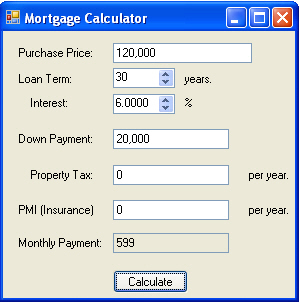
Figure 1 - Mortgage Calculator Form
Many first time home buyers are stumped about how a mortgage works (me included). Say you are buying a $100,000 home at a fixed interest rate of 6% for a 30 year loan. This doesn't mean that you calculate the mortgage as follows: $100,000/(30*12) + ($100,000)*6%/(30*12) as might expect. You are actually paying a lot more. The yearly interest rate is applied fractionally per month and compounded over the life of the mortgage. Therefore, you are paying an interest each month of 6%/12 or about .5% compounded over the length of the loan. Plus, you need to pay property taxes, home owner's insurance, points, and other costs that pop out of the woodwork (so to speak). You actually wind up paying a lot more than $100,000. For a 30 year mortgage at 6% you pay more than two times the cost. With this in mind, how does a bank come up with your payment per month?
Let's first define the variables:
loan: l = $100,000
annual rate: r = 6% (or .06)
period: p = 30 years (or 360 mos.)
monthly payment: x
The total worth of the loan is compounded monthly, and the monthly payment is determined by dividing the entire compounded cost of the loan by the total number of months. So the first monthly payment will be x. The following month you will pay (x + x * r/12), and in the third month, x + (2x + x* r/12) *r/12 = x ( 1 + r/12)2. So the sum of the payments after p months
= x + x (1 + r/12) + x(1 + r/12)2 + x(1 + r/12)3 + x(1 + r/12)4 + x(1 + r/12)5 + x(1 + r/12)6 + ... x(1 + r/12)p-1
= x(1 + (1 + r/12) + (1 + r/12)2 + (1 + r/12)3 + (1 + r/12)4 + (1 + r/12)5 + (1 + r/12)6 + ... (1 + r/12)p-1).
This compound interest formula is a geometric progression and geometric progressions can be reduced to the formula:
1 + z + z2 + z3 + . . . + zn = [zn+1 - 1]/[z - 1]
| The Sum of A Geometric SeriesIf you have any doubts about this formula. Let's show that the geometric formula works: The definition of a geometric progression can also be viewed by saying that the following: The next sum in the geometric progression can be defined by the taking the previous sum, multiplying all parts of the series by the factor and then adding 1 to it. Another words: f(n) = 1 + z + z2 + z3 + . . . + zn f(n+1) = 1 + z (1 + z + z2 + z3 + . . . + zn) = 1 + z f(n) Also (more obviously), the next sum in the progression equals the previous sum plus the next highest factor f(n+1) = f(n) + zn+1 Taking the two equations for f(n+1) and using substitution: 1 + zf(n) = f(n) + zn+1 solving for f(n): f(n) = (zn+1 - 1)/(z-1) |
So plugging our geometric formula for mortgages into the geometric progression equation gives us:
Total Mortgage = x * ((1 + r/12((p-1) + 1) - 1)/(1 + r/12 - 1))
Reducing the equation:
Total Mortgage = x * ((1 + r/12)p - 1)/( r/12)
= 12x / r * ((1 + r/12)p - 1)
The actual value of the total mortgage is the initial loan value compounded over the period of time the loan is paid:
Total Mortgage = (Loan Value) * (1 + r/12) p
Substituting the formula for the total mortgage into the equation, The final formula for a mortgage (known as the amortization equation) is shown below:
(Loan Value) * (1 + r/12) p = 12x / r * ((1 + r/12)p - 1)
Let's plug this formula in for our $100,000 loan at 6% over 30 years (360 months)
100,000 (1 + .06/12) 360 = 12x / .06 * ((1 + .06/12)360 - 1). = 200x * 5.02257 = 1004.5x
602,257.52 = 1004.5x
Now solve for x to get our monthly payment.
x = 602,257.52/1004.5 = $599.56
In other words, you would need to pay $599.56 monthly for 30 years to pay off a $100,000 loan at 6%. (This is not including the yearly property tax and the home owner's insurance).
The Design
The Mortgage Calculator consists of just two classes: a Windows Form for accepting input and for doing the calculation, and a ThousandsTextBox that overrides the TextBox control class in order to allow the user to type in numbers and handle the comma separator for the thousands place. The ThousandsTextBox also has a property CurrentValue that allows you to translate between the double and string value inside the text box.
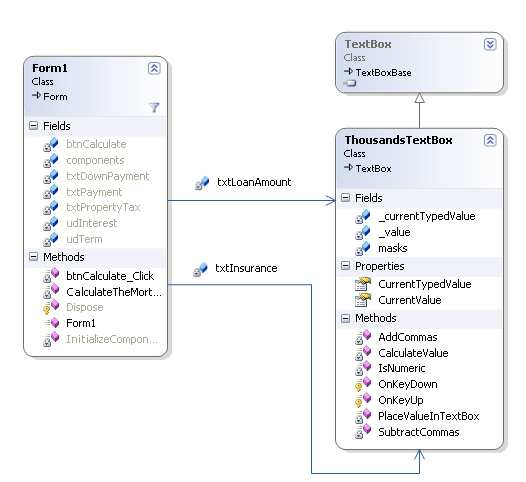
Figure 2 - UML Class Diagram for the Mortgage Calculator
The Code
The C# code for calculating the mortgage takes all the input fields from the NumericUpDown controls and the ThousandTextBox controls and plugs them into the mortgage formula. The calculator also takes into account payments for both the property tax and the home owner's insurance. Listing 1 shows the calculation of the mortgage performed inside the Form.
Listing 1 - Calculating the mortgage using the compound interest formula
| private void CalculateTheMortgage(){ // (Loan Value) * (1 + r/12) ^ p = (12x / r) * ((1 + r/12)^p - 1) // payment = (((Loan Value) * (1 + r/12) ^ p) * r)/ (12 * ((1 + r/12)^p - 1))); double loanAmount = (double)txtLoanAmount.CurrentValue; // price of total mortgage before down paymentdouble taxesPerYear = (double)txtPropertyTax.CurrentValue; // this will divided by 12 and added to the monthly paymentdouble downPayment = (double)txtDownPayment.CurrentValue; // down payment will be subtracted from the loandouble interestRate = (double)udInterest.Value / 100; // calculate interest from 100%double termOfLoan = (double)(udTerm.Value * 12); // monthly termdouble propertyTax = (double)txtPropertyTax.CurrentValue; double insurance = (double)txtInsurance.CurrentValue; // plug the values from the input into the mortgage formula double payment = (loanAmount - downPayment) * (Math.Pow((1 + interestRate/12), termOfLoan) * interestRate)/(12 * (Math.Pow((1+interestRate/12), termOfLoan) - 1)); // add on a monthly property tax and insurance payment = payment + (propertyTax + insurance) / 12; // place the monthly payment calculated into the output text field txtPayment.CurrentValue = (int)payment; } |
The Thousand Text Box
The ThousandsTextBox is basically a simple version of a homemade masked text box control that demonstrates how one might handle placing commas in a text box as you type. Initially I tried using the masked text box that comes with Visual Studio, but this proved cumbersome from a user's perspective, so I decided to whip up my own control. The key to creating a masked textbox control is to override the OnKeyDown event so that you can intercept the key strokes and determine what the contents of the control should be before the control key information is displayed.
The OnKeyDown event handler in our ThousandsTextBox first checks to see if a number (or backspace) was typed. If it wasn't a number, the input is suppressed and the handler returns. If the character is a number, the commas are stripped from the control, the character is appended, and the commas are placed back into the control according to a mask in the mask array. We chose the proper mask for our ThousandsTextBox by 1) counting the number of characters of the text inside the textbox (ignoring the commas) 2)applying the resulting count to the index of the mask array. For example, if our value is 10000, then since 10000 has 5 characters we would pick the 5th array element (or "##,###") to use as our mask.
Listing 2 - Overriding the OnKeyDown Handler in the ThousandsTextBox
| string[] masks = new string[] { "#", "##", "###", "#,###", "##,###", "###,###", "#,###,###", "##,###,###", "###,###,###", "#,###,###,###" };protected override void OnKeyDown(KeyEventArgs e) { // get the character that was pressed char keycode = (char)e.KeyValue; // determine if the character pressed was numeric or // if the character would go beyond the limit of the largest mask if ((!IsNumeric(keycode)) || Text.Length >= masks[masks.Length - 1].Length) { // if it's not numeric, don't try to handle it // and suppress the character so it won't be displayed e.Handled = true; e.SuppressKeyPress = true; if (keycode != '\b') { // if it's a backspace, we still want to react to the keypress, otherwise return return; } } // add the character to the final string if its not a backspace if (keycode != '\b') { Text += keycode; } // take out all the commas, to get the raw number _currentTypedValue = SubtractCommas(Text); // handle the backspace by removing the digit at the end of the string if (keycode == '\b') // take out a character { if (SelectionStart >= 0) { if (_currentTypedValue.Length > 0) { _currentTypedValue = _currentTypedValue.Remove(_currentTypedValue.Length - 1, 1); } } } // Put the commas back in the number string using the // mask that matches the number string length _currentTypedValue = AddCommas(_currentTypedValue); // Assign the Text property of the edit box to the // comma decorated string Text = _currentTypedValue; if (Text.Length > 0) { // select the last character Select(Text.Length - 1, 1); } // mark that we have just handled the key press event e.Handled = true; } |
Conclusion
Mortgages can be a daunting concept for first time home buyers. The real estate market is filled with costs that will make your head spin. Sometimes it is good idea to plug the values into a program or spreadsheet so that you can get an accurate picture of your expenses. This mortgage calculator can help you determine a ball park figure of the cash you'll need to shell out on a monthly basis if you are considering a long term home mortgage. So use it wisely to help you determine your .NET costs and to help you C a Sharp and bright future :-).
12:30 AM 0
Subscribe to:
Posts (Atom)
