Showing posts with label Crystal Report. Show all posts
Showing posts with label Crystal Report. Show all posts
Wednesday, November 9, 2011
SubReports in Crystal Reports
In this example i am going to describe how to create SubReports in Crystal Reports or Crystal Reports SubReport in ASP.NET.
For this i have used two tables from MS SQL database named Employees and Projects.
Main Crystal Report is fetching data from both the tables and is grouped by Project Name
SubReport is used to display information about respective project and fetching data from Projects Table.
Schema for both the tables in shown below in images, create tables accordingly and add relevant data in it to start.
You can click on Images to Enlarge


To start , Create a new website in VS and right click on Solution Explorer and select Add new Item > Crystal Report. In the wizard window choose Using the Report Wizard radio button and Standard type in Choose an Expert section.

In next screen select Expand OLEDB(ADO) and Choose create new connection

Select Microsoft OLEDB Provider for SQL server and click next

In next screen check the Integrated security checkbox so that report doesn't ask for username and password Enter you SQL Server name and Select DataBase from the dropdown ,

In next window expand and locate your tables you want to use and add them in right pane


In next screen select the fields you want to display in main report and add them in right pane , in my case i am showing fields from two tables in main report

Now select the field which you want report to be grouped by ( in this example i m grouping report by Project Name)

Select the report style you want and finish the wizard

Now to add a subReport Right click in group header section (below Group #1 Name)
Choose Insert > SubReport , Place the ractangle where you want SubReport to be displayed. a wizard window will open prompltly

Enter report Name and click on report wizard buttonin next screen ,


Choose the table and fields you want to use in SubReport in next two screens and click on finish
Now Insert subReport window will open again , In this window click on Link Tab and select the field on which you want to filter SubReport or the ID of the record to show SubReport. I am using ProjectID in this example.

This is how design of report will look like

And this is how report preview will look

Save , build and rum the website.
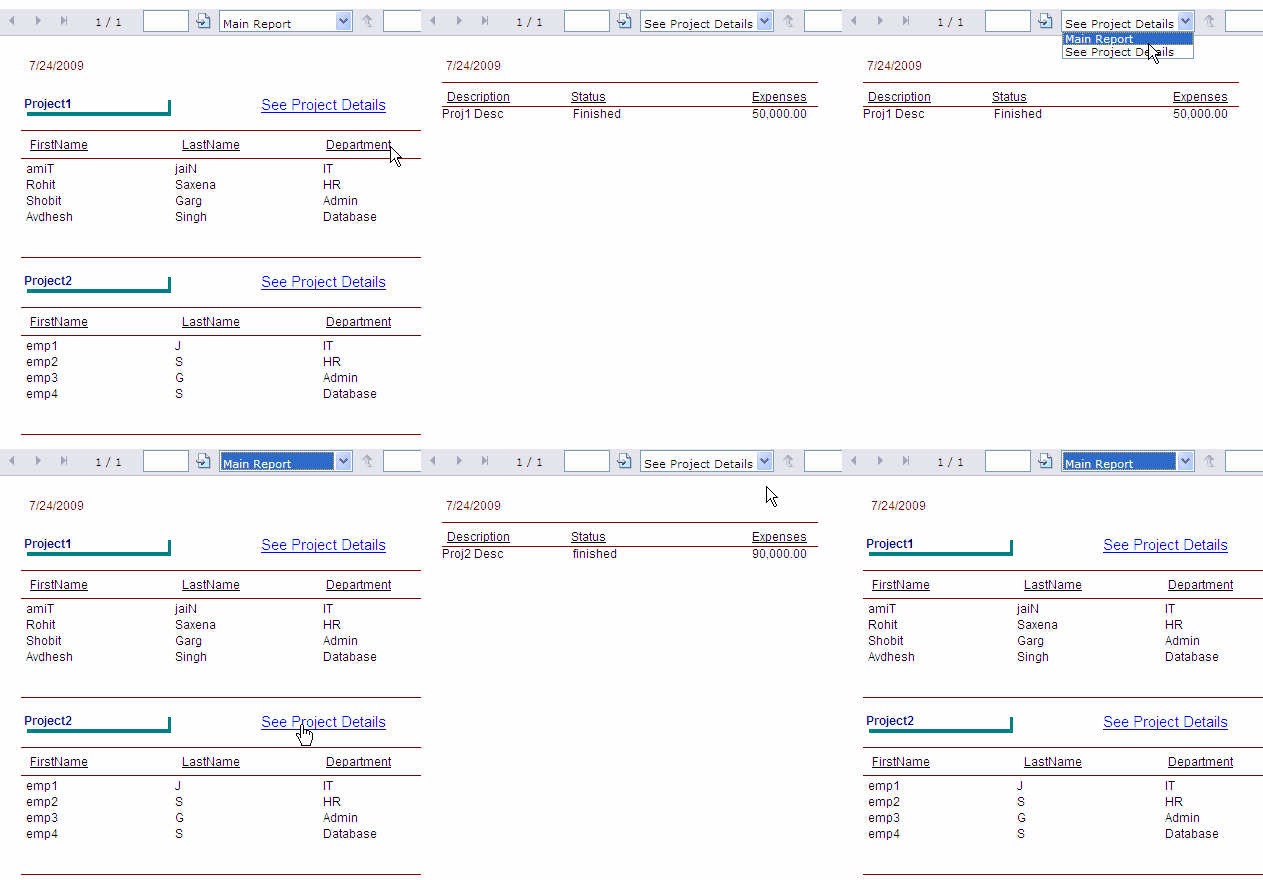
Now if you don't want to show SubReport but want to put a hyperlink instead or want to create On-Demand SubReport then do these changes in the design of report
Right click on SubReport in Design View and select Format Object

In the window opened ,Go to SubReport tab, Change the SubReport name to text you want to show as hyperlink, Check the On-demand SubReport check box and click on ok

Now design of report will look like image below

Html source will go like this (AutoGenerated)
<CR:CrystalReportViewer ID="CrystalReportViewer1" runat="server"
                        AutoDataBind="True" Height="1039px"
                        ReportSourceID="CrystalReportSource1"
                        Width="901px" />
<CR:CrystalReportSource ID="CrystalReportSource1" runat="server">
<Report FileName="CrystalReport.rpt">
</Report>
</CR:CrystalReportSource>
Save, build and run the solution , this is how report will look like
10:29 PM 0
Friday, October 21, 2011
Integrating SQL Server Reporting Services with ASP.NET 3.5
Today, I am going to discuss Basic and Simple demo on Integration of SSRS with ASP.NET 3.5, I am assuming that readers have already have installed Visual Studio 2008, SQL Server 2008 [with Reporting Features] and Report Builder 2.0
Just to have idea those who are new to SSRS, SQL Server Reporting Services 2008 are in a way unique due to their architecture, Now we have a separate block of Tablix, Tablix is combination of Table + Matrix [In short, Table + Matrix = Tablix].
Since Microsoft have great association with .NET Dundas visualization tool, so now you can implement Graphs, Gauges in your reports with ease and with much more Rich UI, which you can create using tools like Report Builder 2.0.
I am showing this example with Northwind Database. I assume you are comfortable with Report Builder 2.0 to design your report.
What I would like to discuss over here before we go for ASP.NET integration is how we can enhance performance of Report say for like getting 1 lac or more records, So We can Implement Cache for the same.
Step 1 : Cache the Report for better Performance
Start your Reporting Manager instance [ You can find URL of that in your Reporting Services Configuration], Once you add Report to your directory, Click on Report and locate “Properties” tab, Click on Properties and you will find Cache settings in “Execution” option on left hand side.


Note : You can only set Cache if and only if you provide valid credentials for “DataSources” option just above “Execution” option, else it will not allow you to implement Cache.
Once you apply Cache, Test report in Report Manager, Close the Report Manager instance and Start Visual Studio 2008
I tried from 60k to 1 lac records and it worked out very smoothly, so I personally find this feature as “Edge” over Crystal Reports.
Step 2: Integrate Report with ASP.NET 3.5 and Send parameters to Report from ASP.NET Web Application
You already have “MicrosoftReportViewer” Control in your Visual Studio 2008 under Reporting tab on Toolbox.
I am now taking one instance of ReportViewer with one TextBox to accept paramaters and one command button to submit that parameters to Report.
ASP.NET Code :
<div>
<table>
<tr>
<td>Enter Customer ID: </td>
<td><asp:TextBox Width="180" runat="server" ID="txtparam"/></td>
<td><asp:Button Text="Show Report" ID="btnSubmit" runat="server" onclick="btnSubmit_Click" /></td>
</tr>
</table>
<rsweb:ReportViewer ID="rptvw" runat="server" Height="600px" Width="800px"></rsweb:ReportViewer>
</div>
C# Code :
using Microsoft.Reporting.WebForms;
….
protected void btnSubmit_Click(object sender, EventArgs e)
{
rptvw.ProcessingMode = ProcessingMode.Remote;
rptvw.ServerReport.ReportServerUrl = new Uri("http://localhost/reportserver");
rptvw.ServerReport.ReportPath = "/Northwind/NewNorthwind";
ReportParameter[] param = new ReportParameter[1];
param[0] = new ReportParameter("CustomerID", txtparam.Text);
rptvw.ServerReport.SetParameters(param);
rptvw.ServerReport.Refresh();
}

Explanation of Code :
Currently, I am sending only one parameter as “CustomerID” to my Report. SSRS basically supports two Processing Modes as “Remote” and “Local”, Since there is no support available for “Local” mode, Developers are suppose to fetch reports directly from Reporting Server, So I have set mode as “Remote” and have set those paths which you can see in code.
This is most simple way to integrate SSRS with ASP.NET, some other ways are using WebService [WSDL which RS exposes], but I personally find that time consuming and bit difficult compare to this one.
Hope this will give you idea about how you can enhance performance of your report with implementation of Cache and how easy is integration with ASP.NET 3.5 Web Application.
On ending note..
SSRS now give you power to export your reports in various formats like XML,PDF,CSV,TIFF and other Standard Office document formats, Also Report Builder 2.0 now implements most of the Office features like Zooming and Ribbon Controls for design and editing etc.
12:06 AM 0
Saturday, October 15, 2011
Passing Parameters and Loading Crystal Report Programmatically
Reporting is an important part for every application. Crystal reports are widely used and also available in Visual Studio for reporting purposes. I personally never like designing application interfaces and working on web designs, it needs good designing skills which I lack and so I never put my hands on designing anything, but sometimes we have to. In crystal reports when you create a report using wizard or just adding a blank report to the project and then fetching data using code (after designing), the report works fine on the machine where you have designed and develop it and the problem occurs when you have to deploy or distribute your application with reports on multiple machines or clients. Of course, the connection string or you can say in simple words the server name, database name, user name and password is different than the name you used in your connection string while you test and make your application ready to be distributed. Therefore, to overcome this problem I wrote a class which will help me to achieve this in one line and also keep my code neat and clean. So this simple class will let you set the connection for your report dataset and let your reports work properly without any problems.
1 2 3 4 5 6 7 8 9 10 11 12 13 14 15 16 17 18 19 20 21 22 23 24 25 26 27 28 29 30 31 32 33 34 35 36 37 38 39 40 41 42 43 44 45 46 47 48 49 50 51 52 | using System;using System.Collections.Generic;using System.Linq;using System.Text;using CrystalDecisions.CrystalReports.Engine;using CrystalDecisions.Shared;namespace ReportExportDemo{ class Reports { static TableLogOnInfo crTableLogonInfo; static ConnectionInfo crConnectionInfo; static Tables crTables; static Database crDatabase; public static void ReportLogin(ReportDocument crDoc, string Server, string Database, string UserID, string Password) { crConnectionInfo = new ConnectionInfo(); crConnectionInfo.ServerName = Server; crConnectionInfo.DatabaseName = Database; crConnectionInfo.UserID = UserID; crConnectionInfo.Password = Password; crDatabase = crDoc.Database; crTables = crDatabase.Tables; foreach (CrystalDecisions.CrystalReports.Engine.Table crTable in crTables) { crTableLogonInfo = crTable.LogOnInfo; crTableLogonInfo.ConnectionInfo = crConnectionInfo; crTable.ApplyLogOnInfo(crTableLogonInfo); } } public static void ReportLogin(ReportDocument crDoc, string Server, string Database) { crConnectionInfo = new ConnectionInfo(); crConnectionInfo.ServerName = Server; crConnectionInfo.DatabaseName = Database; crConnectionInfo.IntegratedSecurity = true; crDatabase = crDoc.Database; crTables = crDatabase.Tables; foreach (CrystalDecisions.CrystalReports.Engine.Table crTable in crTables) { crTableLogonInfo = crTable.LogOnInfo; crTableLogonInfo.ConnectionInfo = crConnectionInfo; crTable.ApplyLogOnInfo(crTableLogonInfo); } } }} |
This class contains ReportLogIn method which is overloaded which lets you choose the type of datasourde you want to connect to. The first method in the class requires SQL Server authentication to log-on to the server and the second method is used when the server is configured on windows authentication, similar to Integrated Security = true.
Sample usage of the Reports class is as follows. I have used AdventureWorks database for this example. If you dont have adventure works database then you can download the sample database from Microsoft's website or from codeplex or you can create your own report and check it with this example.
1 2 3 4 5 6 7 8 9 10 11 12 13 14 15 16 17 18 19 20 21 22 23 24 25 26 27 28 29 30 31 32 33 34 35 36 37 38 39 40 41 42 43 44 45 | using System;using System.Collections.Generic;using System.ComponentModel;using System.Data;using System.Drawing;using System.Linq;using System.Text;using System.Windows.Forms;using CrystalDecisions.CrystalReports.Engine;using CrystalDecisions.Shared;namespace ReportExportDemo{ public partial class frm_main : Form { public frm_main() { InitializeComponent(); } private void btn_prvrpt_Click(object sender, EventArgs e) { int Cust_Id = Convert.ToInt32(txt_customerid.Text); //string Cust_Id = txt_customerid.Text.Trim(); //Initialize report document object and load the report in the report document object ReportDocument crReportDocument = new ReportDocument(); crReportDocument.Load(Application.StartupPath+"\\Reports\\AdventureCustReport.rpt"); //login to the server to get details from the server and populate to the report Reports.ReportLogin(crReportDocument, "MX\\SERVER", "AdventureWorks", "sa", "pass#w0rd1"); //Pass parameter to the report object crReportDocument.SetParameterValue("id", Cust_Id); //To create PDF from the crystal report crReportDocument.ExportToDisk(ExportFormatType.PortableDocFormat, "CustomerReport" + Cust_Id + ".pdf"); //Preview the generated PDF System.Diagnostics.Process.Start(Application.StartupPath + "\\CustomerReport" + Cust_Id + ".pdf"); } }} |
Note the namespaces I have used in the above code and also how I have used the Reports class ReportLogin method. For more clarification of the code download the sample application with the report below.
One important thing that you have to keep in mind while designing report is to set the parameter. After you have set the parameter and you use your report with the above code, the report will then populate the whole lot of records in the table trrespective of the parameter you pass to the report. So to avoid this and to view only the record of your choice you needs to set the formula in the crystal report. the formula goes like this:
Sample Syntax:
{<Table's Column Name>}={?<Parameter Name>}
In my report this formula looks something like this:
{CustomerID}={?ID}
Download: ReportExportDemo.zip (55.76 kb)4:06 AM 0
Subscribe to:
Posts (Atom)
